
AI image generators such as ChatGPT have made it easier than ever to create artwork for custom scarves. Even without professional design experience, you can turn an idea into a complete design in just a few minutes.
However, there is one common issue when using AI-generated artwork for printing: an image may look perfectly clear on your computer or phone screen but not have enough resolution for a larger scarf.
Why Image Resolution Matters
Digital images are made up of pixels. When an image is printed on a smaller scarf, those pixels only need to cover a relatively small area, so the final result may still look clear and detailed.
When the same image is printed on a larger scarf, the same number of pixels has to cover a much larger area. If the original artwork does not contain enough pixels, fine details may start to look soft, pixelated, or blurry.
This is why an image that works well for 33 × 33 cm custom scarves may not necessarily be suitable for a 90 × 90 cm silk scarf.
Important: Resizing Does Not Improve Image Clarity
This is one of the most common misunderstandings we see with digital artwork.
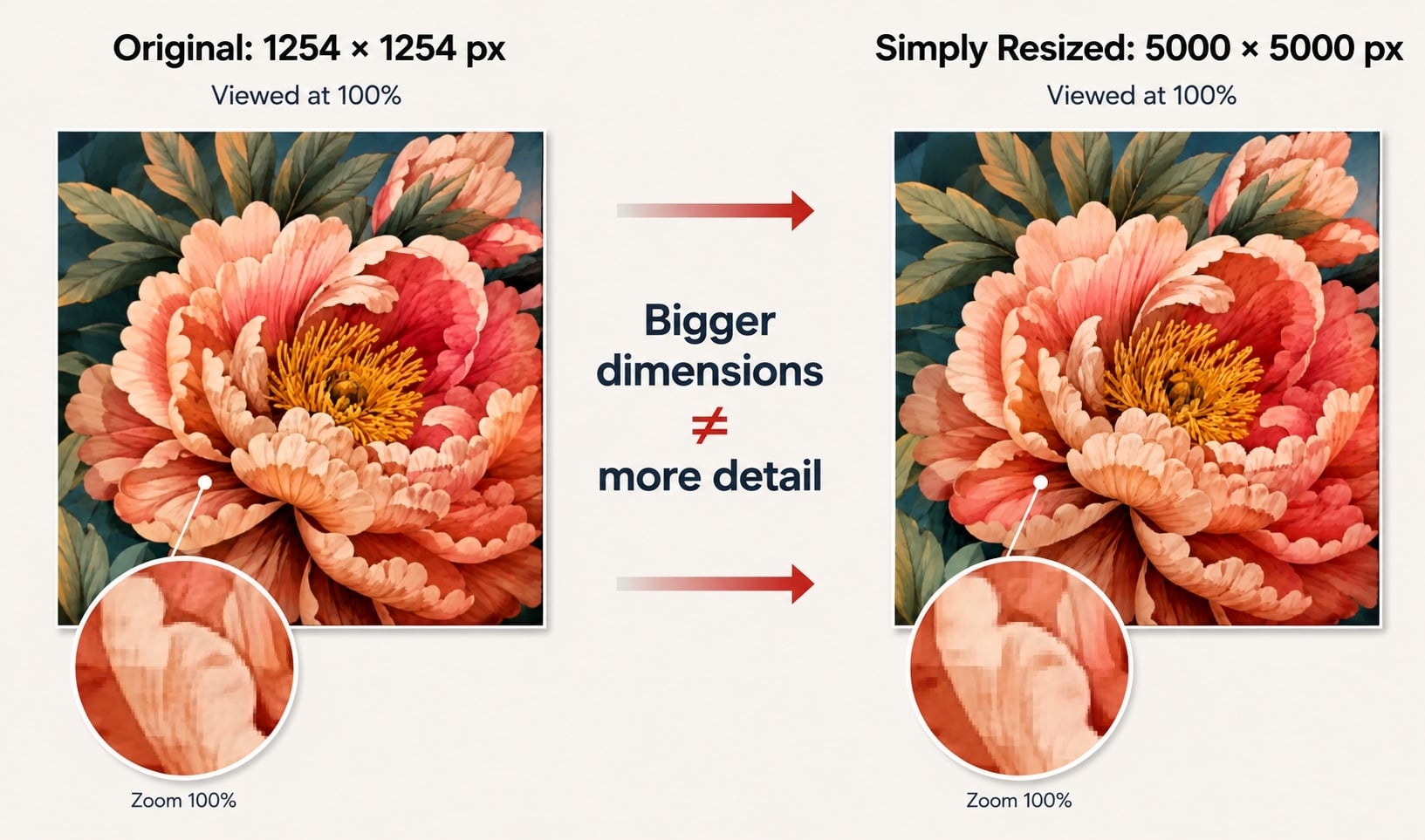
For example, suppose your original image is 1254 × 1254 pixels, and you use an editing program to change it to 5000 × 5000 pixels. The file is now technically larger, but that does not mean the original image suddenly contains more real detail.
Think of it like enlarging a small photograph. Making the photo bigger does not magically reveal details that were not there in the first place. Simply changing the pixel dimensions is resizing; it is not the same as improving the actual image quality.
An easy way to check is to view the enlarged artwork at 100%. If the edges, textures, small details, or other elements still look blurry, increasing the pixel dimensions alone has not solved the problem.
A Better Option: AI Image Upscaling
If your AI-generated artwork is too small for your chosen scarf size, an AI image upscaler tool may be worth trying.
Unlike conventional resizing, AI upscaling tools analyze the original image and attempt to reconstruct edges, textures, and other visual details while increasing the image resolution.
There are several easy-to-use online tools you may want to consider:
Pixelcut AI Image Upscaler
Pixelcut offers a browser-based AI upscaling tool with a relatively simple process: upload your image, upscale it, review the result, and download the enhanced version.
Canva AI Image Upscaler
If you already use Canva for design work, its Image Upscaler can be a convenient option. It allows you to increase the image size and compare the result with the original.
Adobe Express
Adobe Express also offers online image enhancement and editing tools. It may be worth considering if you are already familiar with Adobe products or want to make additional adjustments to your artwork.
These tools can help improve image quality in some cases, but the results will depend on the quality of the original image, the type of artwork, and the amount of detail it contains. AI upscaling cannot guarantee that every low-resolution image will become suitable for high-quality printing.
After upscaling, view the image at 100% and pay particular attention to faces, text, logos, fine lines, and complex textures. AI tools may occasionally reinterpret or alter small details while enhancing an image, so make sure the final result still matches your intended design.
Leave Enough Space for the Scarf Edges
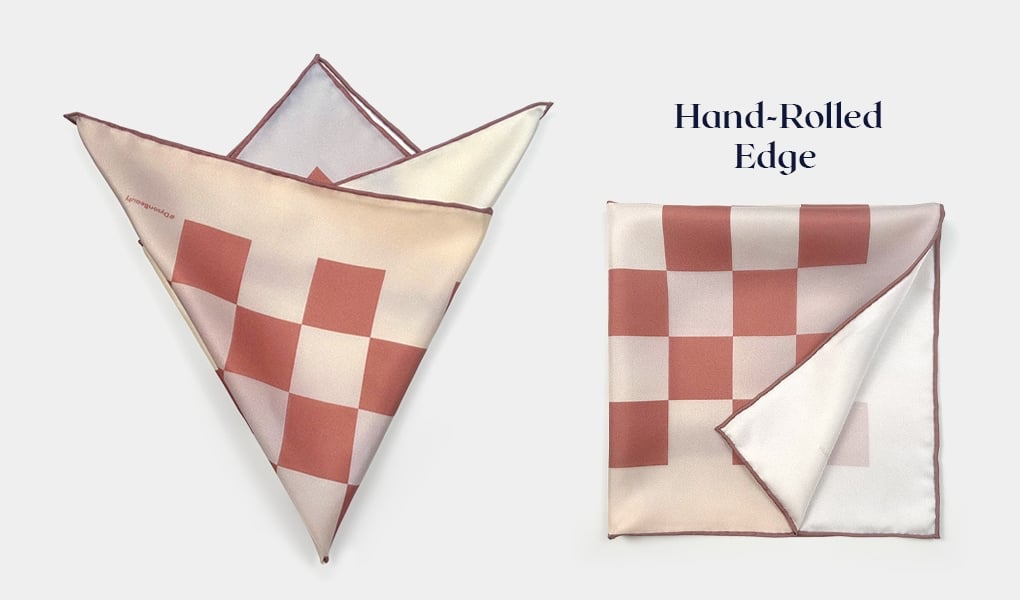
AI image generators do not automatically account for this finishing process. As a result, they may place text, logos, faces, flowers, or other important design elements too close to the edge of the image.
It is a good idea to leave an appropriate safe area around the design and avoid placing important elements right against the edges.
Check for Unwanted White Borders
AI-generated images sometimes have a white or light-colored border around the edges. If that border remains in the final artwork you submit, it will be treated as part of the design and may appear on the finished scarf. It will not automatically disappear during printing.
Before submitting your artwork, check all four sides of the image and decide whether the border is an intentional part of your design. If it is not, remove it before production, taking care not to crop out any borders, patterns, or other design elements that you want to keep.