
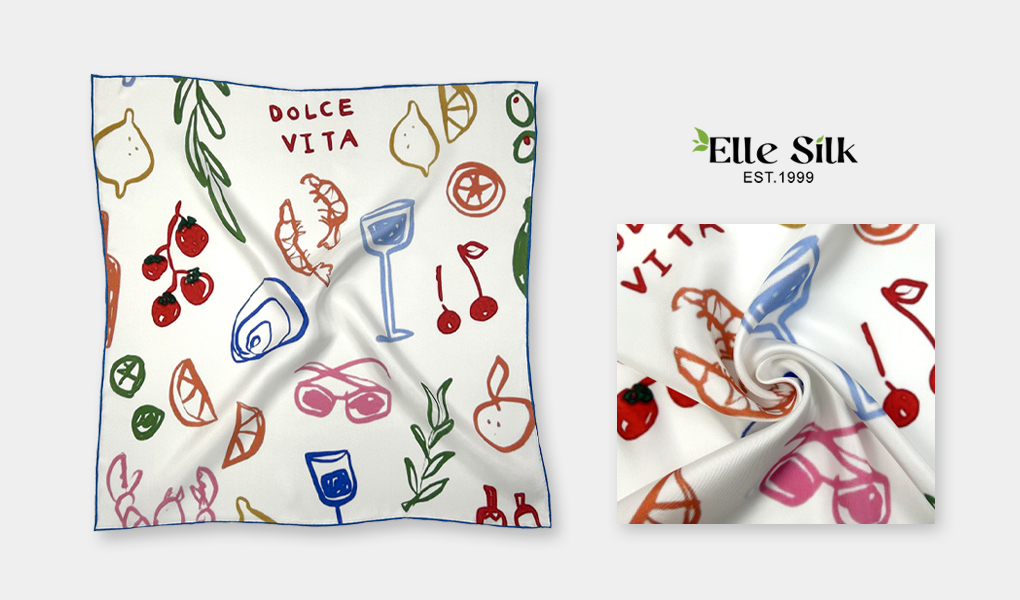
When you design your own custom silk scarves, you want it to look exceptional—sharp details, rich colors, a beautiful finish that matches your vision.
But there’s one key factor that determines whether your image will print beautifully or disappointingly: image resolution.
We often receive images that look great on a screen, but unfortunately, they aren’t suitable for printing on silk at full size. The result? A scarf that appears blurry, pixelated, or flat—not what you expected.
Let’s take a closer look at why this happens and how you can avoid it.
What Is Image Resolution (and Why Does 300 DPI Matter)?
DPI stands for dots per inch. It refers to how much detail is packed into every inch of a printed image.
- 300 DPI is the standard resolution for professional printing. At this level, your image contains enough fine detail to be printed sharply, even on a large surface like a silk scarf.
- 72 DPI (or 96 DPI) is typically used for images displayed on screens. It looks perfectly fine on your phone or laptop, but when enlarged for print, it lacks the necessary detail.
Here’s the key point: printing and screens are completely different environments. A digital display can make an image look crisp even if the resolution is low. Printing exposes the true amount of detail in the file.
How Screen and Print Differ
When you view an image on your device:
- The screen adjusts how the image is displayed, smoothing out imperfections.
- You’re usually looking at the image much smaller than the full scarf size.
- Your eyes are forgiving—especially on bright, backlit screens.
When we print on silk:
- The image is printed at full size, without digital smoothing.
- Silk’s natural sheen and texture highlight any flaws or lack of detail.
- Every pixel in your file is mapped directly onto the fabric.
This is why an image that looks sharp at 4 inches wide on a screen may appear blurry when printed at 36 inches on silk.
The Problem with “Just Changing DPI”
One common misunderstanding is this: “If I change my file to 300 DPI, that should fix it.”
Not necessarily.
DPI is just a label—it doesn’t add information to your image. The real factor that matters is pixel dimensions (how many actual pixels your image contains).
For example:
- If your image is 1000 x 1000 pixels and you change the DPI from 72 to 300, the image is still 1000 x 1000 pixels. You haven’t created more detail; you’ve only changed the way the file is labeled.
- To print 36” x 36” custom silk scarves at 300 DPI, your file needs to be about 10,800 x 10,800 pixels. Anything smaller will result in visible blurring when scaled up.
In other words: the best results come from designing at full size from the beginning, not from resizing an existing low-res image.
How Low Resolution Affects Silk Printing
Silk is an unforgiving surface when it comes to detail. Here’s what you can expect:
| High-Resolution Image (300 DPI) | Low-Resolution Image (72 DPI) |
| Sharp, defined edges | Soft, blurry edges |
| Fine detail preserved | Details lost or smudged |
| Smooth color gradients | Banding or pixelation in colors |
| Professional, luxury finish | Amateur or disappointing look |
Because silk reflects light and has natural sheen, flaws in the image become even more noticeable. A design that looks “fine” on paper can look clearly imperfect on silk.
How to Check If Your Image Is Suitable
- View at 100% size:
Open your image in an editing program and zoom to 100%. This shows you the true print size. If your custom silk scarves will be 36” wide, does your image look crisp when viewed at that scale? - Check pixel dimensions:
Divide your image pixel dimensions by 300 to find out the print size in inches. For example:
- 9000 pixels wide ÷ 300 DPI = 30 inches wide.
- If your custom silk scarves size is larger than 30 inches, the image will need to be scaled up, which may cause blurring.
- 9000 pixels wide ÷ 300 DPI = 30 inches wide.
- Avoid “upscaling” small images:
Enlarging a small image in Photoshop or another tool won’t create real detail—it just stretches what’s already there.
How to Prepare Your Image for Success
If you’re designing your image yourself:
- Start with the correct canvas size:
Set your document to the scarf’s full size at 300 DPI from the start. - Use high-quality source elements:
If incorporating photographs or graphics, make sure they are also high-resolution. - Export carefully:
Save your file at 300 DPI with maximum quality settings. Avoid heavy compression. - Double-check before uploading:
If you’re unsure, we’re always happy to review your file to ensure it will print beautifully.
FAQ: Common Questions About Resolution & Printing
Q: My image is 72 DPI, but it’s over 6000 pixels wide. Is that okay?
A: Possibly. DPI is just one part of the equation—the pixel dimensions are just as important. If your image is large enough in pixels to cover the scarf size at 300 DPI, then it can still print well. We can confirm for you if you’re unsure.
Q: I created my design in Canva/Figma/Procreate—will it work?
A: It depends on how you exported it. These tools often default to screen resolution. Be sure to export your final file at 300 DPI with full pixel dimensions. If you’re not sure, send it to us—we’re happy to check.
Q: Can you print my design if it’s not 300 DPI?
A: Technically yes, but we strongly recommend against it. We can print lower-resolution images if you understand and accept that the final result may be noticeably less sharp.
Q: Do I need to convert my file to CMYK color mode?
A: Not necessarily. We accept RGB files, and we handle color calibration on our end for silk printing. However, keep in mind that colors may shift slightly due to fabric absorption and natural sheen.
Quick Checklist: Is Your Image Print-Ready?
Before uploading your design, take a moment to review the following:
✅ Designed at full scarf size (e.g., 36″ x 36″)
✅ 300 DPI resolution
✅ Pixel dimensions meet or exceed scarf size × 300 (e.g., 10,800 x 10,800 pixels)
✅ Viewed at 100% size and still looks crisp
✅ Exported at full resolution (no compression or resizing)
✅ Saved as a high-quality PNG, JPG, TIFF, or PDF